How to Block Apps on iPhone
A complete guide to blocking apps on iPhone using Screen Time App Limits and Downtime, why the built-in limits are easy to dismiss, and what to do about it.
Everything you need to block an app is already on your iPhone and costs nothing. Most people either don't know it's there or tried it once, hit Ignore Limit four times in a row, and concluded it doesn't work.
Both the setup and that failure are worth understanding, because the fix for the second part is not a different app so much as a different arrangement.
Blocking an app with Screen Time
Open Screen Time
Settings → Screen Time. If you've never used it, turn it on. iOS starts collecting usage data immediately, though the numbers only get interesting after a few days.
Add an App Limit
Tap App Limits → Add Limit. Pick individual apps rather than whole categories where you can. Category limits sweep up more than you expect and are the usual reason a limit feels unreasonable on day two.
Set the time and days
Choose a daily allowance, and use Customize Days if weekends should differ from weekdays. Setting a limit of one minute is the practical way to block an app outright rather than ration it.
Turn on Block at Downtime
Under Downtime, set the hours the phone should be quiet, then enable Block at Downtime so limits are actually enforced during that window rather than merely suggested.
Why it stops working
When you hit an App Limit, iOS shows a shield with an option to ignore it. One more minute, or ignore for the day. Nothing stands between you and that button.
This is the crux. Setting a limit is a decision made by a calm version of you with a plan. Dismissing it is a decision made by a bored version of you at 11pm, and the second one wins because the system asks them to agree and only one of them is present.
There is a partial fix that most people miss. Set a Screen Time passcode under Settings → Screen Time → Lock Screen Time Settings, and use a code you don't use anywhere else. Ignoring a limit then requires typing it, which is enough friction to break the reflex. Note that this is genuinely recoverable if you forget it, via your Apple Account, so it's a speed bump rather than a lock.
Blocking apps without blocking what you need
The deeper limitation is that Screen Time treats an app as one indivisible thing. Instagram is available or it isn't. It can't give you messages while withholding Reels, because iOS has no visibility into what's happening inside the app.
This matters because most abandoned blocking setups die here rather than from weakness. You block Instagram, you need to reply to someone, you unblock it, and it stays unblocked.
Unspiral approaches it from both ends: block the native apps through Screen Time, while their websites stay reachable in a quieter form. So the native Instagram app is shielded, and you can still get to your DMs without Reels.
Grant Screen Time access
Unspiral asks for Screen Time permission, which is what allows it to shield apps. Apple hands over privacy-preserving selections rather than a list of what you use, and those selections stay on your iPhone.
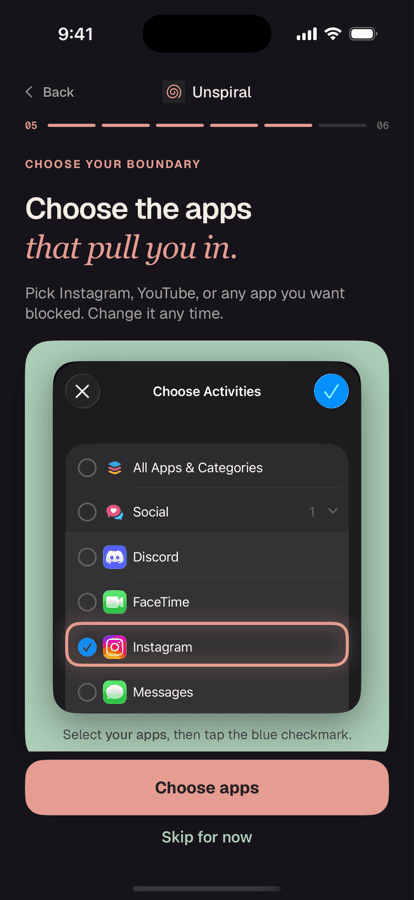
Pick apps and a duration
Choose individual apps in Apple's picker, set a length, and start. You can also set a recurring schedule so the boundary returns automatically on the days and times you choose.
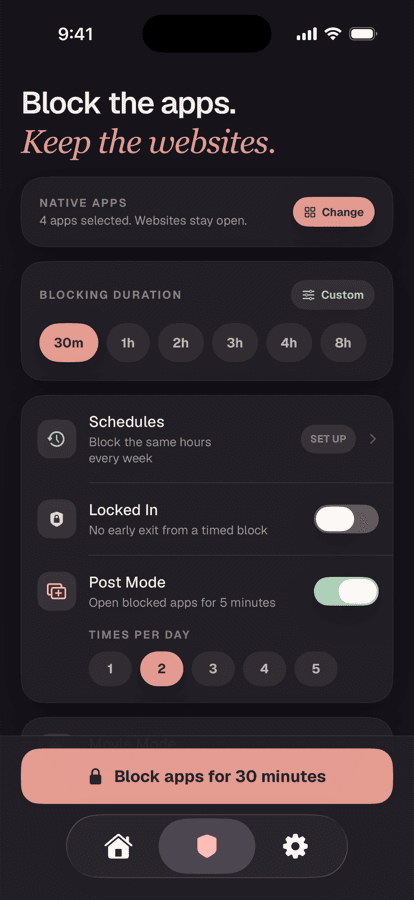
Recurring schedules mean you set this once rather than deciding daily.
Other things worth knowing
- Deleting an app doesn't clear its limit. Reinstall it and the limit is still there, which is occasionally confusing and occasionally useful.
- Safari can undo your work. Blocking Instagram while leaving Safari open means instagram.com is one tap away. Web content restrictions handle this, and it's the most common gap in a blocking setup.
- Always Allowed matters. Under Screen Time → Always Allowed, keep Phone and Messages available so a block never stops you being reachable in an emergency.
- Restrict changes for someone else's phone. If you're setting this up for a child, Content & Privacy Restrictions prevents them altering the limits, which App Limits alone doesn't.
Frequently asked questions
How do I block an app on my iPhone?
Go to Settings, Screen Time, App Limits, then Add Limit and choose the app. Setting the allowance to one minute effectively blocks it outright. Enabling Block at Downtime enforces limits during your chosen quiet hours rather than merely suggesting them.
How do I stop myself ignoring Screen Time limits?
Set a Screen Time passcode under Lock Screen Time Settings, using a code you don't use elsewhere. Ignoring a limit then requires typing it, which breaks the reflex. It's recoverable through your Apple Account if forgotten, so treat it as friction rather than a lock.
Can I block part of an app instead of all of it?
Not with Screen Time, which can only treat an app as available or unavailable because iOS can't see inside it. Blocking a feature such as Reels while keeping Instagram messages working requires opening the site through an app that applies display rules, such as Unspiral.
Does blocking an app delete its data?
No. Blocking makes an app unavailable but leaves it and its data installed. Limits also persist if you delete and later reinstall the app.
Can I still receive calls and messages when apps are blocked?
Yes, provided Phone and Messages are listed under Screen Time, Always Allowed. This is worth checking when you first set up blocking so a limit never prevents you being contacted in an emergency.