Screen Time App Limits Not Working? Here's Why
Screen Time limits not blocking apps, resetting, or disappearing? Here are the eight causes, from category limits and Safari gaps to the Ignore Limit button.
Screen Time has a reputation for being unreliable, and it's about half deserved. Some of what people report as broken really is buggy. The rest is Screen Time doing precisely what it was built to do, in a way nobody wants.
Here's how to tell which one you're looking at.
1. You're ignoring the limit
Start here, because it's the answer far more often than anything technical. When a limit is reached, iOS shows a shield with Ignore Limit, offering one more minute or the rest of the day. Tapping it isn't a malfunction. It's the feature.
Fix: set a Screen Time passcode under Settings → Screen Time → Lock Screen Time Settings, using a code you don't use anywhere else. Ignoring now requires typing it. This alone resolves the majority of reports.
2. Block at Downtime is off
Downtime without Block at Downtime enabled is a suggestion. Apps grey out and open anyway.
Fix: Settings → Screen Time → Downtime, and turn on Block at Downtime.
3. The website is still open
This is the biggest genuine gap. Blocking the Instagram app does nothing about instagram.com in Safari, and your brain finds this within about a day.
Fix: Screen Time → Content & Privacy Restrictions → Content Restrictions → Web Content, choose Limit Adult Websites, and add the sites to Never Allow. Any blocking setup without this step has a hole in it.
4. You limited a category, not an app
Category limits like Social behave unpredictably because Apple decides what belongs in them, and apps move between categories with updates. People also hit these limits through apps they didn't mean to restrict, then dismiss the limit entirely.
Fix: delete category limits and add individual app limits instead. More setup once, far more predictable afterwards.
5. The limit resets at the wrong time
App Limits reset at midnight in your device's current time zone. Travel across zones and you can get a short day or an unexpectedly generous one.
Fix: nothing to configure, but check Settings → General → Date & Time is set to automatic if the reset time looks wrong at home.
6. Limits vanish across devices
Share Across Devices syncs Screen Time through iCloud, and when the sync half-fails, limits can disappear or apply inconsistently between iPhone and iPad.
Fix: under Settings → Screen Time, toggle Share Across Devices off, wait a minute, and back on. If limits are wrong on only one device, turning it off there entirely and setting local limits is more reliable than fighting the sync.
7. Notifications still arrive
A blocked app can still send notifications, which pulls you back to the shield repeatedly until you give in.
Fix: turn off notifications for the app separately under Settings → Notifications, or add it to a Focus filter. Screen Time doesn't do this for you.
8. Someone reset it
Erasing the device, restoring from certain backups, or changing the Apple Account can clear Screen Time settings. If limits disappeared all at once rather than one at a time, this is usually why.
When Screen Time isn't the right tool
If you've done all of the above and it still fails, the honest diagnosis is often that you're asking Screen Time for something it structurally can't provide. It can only make an app available or unavailable, because iOS can't see what's happening inside it. Instagram is on or off. There's no setting for messages yes, Reels no.
So if you block Instagram and then genuinely need to reply to someone, your only option is to unblock it, and it tends to stay unblocked. That's not a bug you can fix with settings.
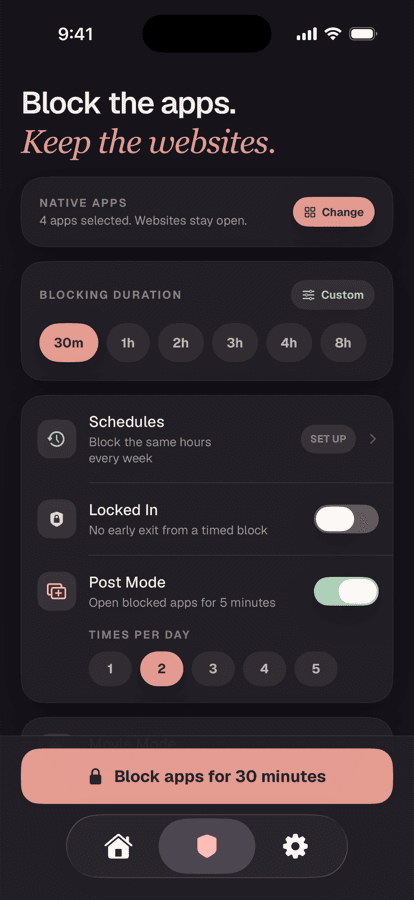
Unspiral works around it by combining both halves: native apps are shielded through Screen Time, while their websites remain reachable in a quieter form with Reels and Shorts removed. And for breaks you'll want to undo, Locked In removes the early exit entirely, which is the thing Ignore Limit can't give you.
Frequently asked questions
Why are my Screen Time app limits not working?
The most common cause is dismissing the limit with Ignore Limit, which is a designed feature rather than a fault. Other frequent causes are Block at Downtime being turned off, the app's website remaining reachable in Safari, and category limits behaving unpredictably. Setting a Screen Time passcode resolves most cases.
How do I stop the Ignore Limit button appearing?
You can't remove it, but setting a Screen Time passcode under Lock Screen Time Settings means using it requires entering that code. Choose a code you don't use elsewhere, since one you can type automatically provides no friction.
Why do my Screen Time limits keep disappearing?
Share Across Devices syncs settings via iCloud and can fail partway, causing limits to vanish or apply inconsistently. Toggling it off and on usually resolves it. Device erases, some backup restores, and Apple Account changes can also clear Screen Time settings entirely.
Does Screen Time block websites too?
Not automatically. Blocking an app leaves its website reachable in Safari. You need Content & Privacy Restrictions, Content Restrictions, Web Content, and add the sites under Never Allow. This is the most common gap in an otherwise complete setup.
Can Screen Time block only part of an app?
No. iOS cannot see inside a running app, so Screen Time can only make it available or unavailable. Removing a single feature such as Reels while keeping messages working requires a different approach, such as opening the site with display rules applied.