How to Hide the Instagram Explore Page
Explore is the most algorithmically aggressive surface in Instagram. Here's how to hide the Explore page on iPhone and what the native controls actually do.
Explore is the strangest part of Instagram. Your feed at least contains people you chose to follow. Explore contains nothing you chose at all. It's a wall of recommendations tuned to whatever the system has decided you'll tap, and it's one screen away at all times.
It's also where a lot of accidental sessions start, because tapping the search icon to look up one specific account drops you into a grid engineered to make you forget why you came.
Reset it, even if you do nothing else
Explore draws heavily on what you've searched, tapped, and lingered on. If yours has drifted somewhere you don't like, it can be pushed back, and this costs nothing.
- Open Settings → Your activity → Recent searches and clear it.
- In Explore, press and hold anything you don't want more of and choose Not interested. Do this properly, ten or fifteen times in one sitting. Doing it twice achieves nothing.
- Under Settings → Suggested content, set sensitive content to Less.
- Check Settings → Your activity → Interactions and remove old likes and comments that no longer reflect what you want to see.
Give it a few days. Explore does respond to this, which tells you something about how directly it's driven by your recent behavior.
Removing it properly
Resetting Explore changes what's on it. If what you want is for it not to be there, that needs a display rule applied on your device. In Unspiral, Hide explore does exactly that, and it's flagged as a recommended control in the app.
Open Instagram Settings
Inside Instagram in Unspiral, tap the gear icon in the top-left corner.
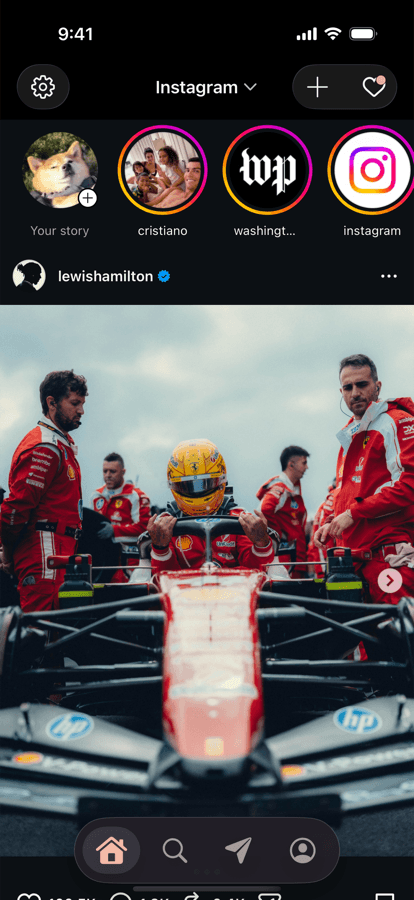
The gear sits where Instagram's own header would normally be. Turn on Hide explore
It's the second switch in the sheet. Search still works for finding specific accounts and hashtags. What goes away is the recommendation grid you land on before searching.
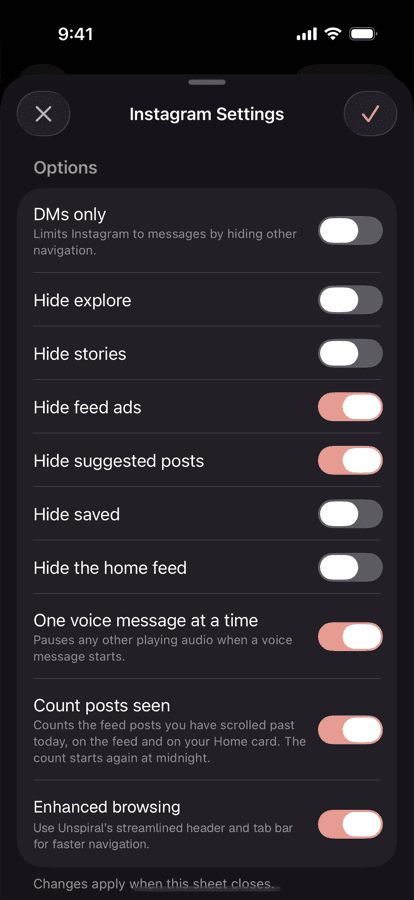
Hide explore ships off, so Instagram stays recognizable until you decide otherwise.
What you lose
Being fair about this: Explore is genuinely how some people find new accounts, and if you follow hashtags or discover creators that way, hiding it removes something real. Search by name and hashtag still works, so you can find things you go looking for, but you won't stumble into them.
For most people that's the entire point. For a few it isn't, and if you're in the second group, resetting Explore rather than hiding it is probably the better move.
Frequently asked questions
Can you turn off the Explore page on Instagram?
Instagram provides no setting to disable or remove Explore. You can change what appears there by clearing your search history and marking posts Not interested, but the tab itself cannot be removed from inside the app. Unspiral's Hide explore control removes it on your device.
How do I reset my Instagram Explore page?
Clear Recent searches under Settings, then mark ten to fifteen posts Not interested in one sitting, and set sensitive content to Less under Suggested content. Explore responds to recent behavior, so a concentrated reset works better than occasional single taps.
Does hiding Explore stop me searching Instagram?
No. Searching for specific accounts, hashtags, and places still works. What's removed is the recommendation grid that appears before you type anything.
Why is my Explore page showing content I don't want?
Explore is driven largely by recent searches, taps, and dwell time, including content you looked at without liking. Because pausing on something counts as a signal, Explore can drift toward material you never deliberately engaged with.