How to Use Instagram Without Reels on iPhone
Instagram has no setting that removes Reels. Here are five ways to use Instagram without Reels on an iPhone, what each one actually removes, and what you give up.
You opened Instagram to reply to one message. Twenty minutes later you're four Reels deep and you still haven't sent it. The feed isn't the problem. Reels is, and Instagram doesn't give you a way to turn it off.
Why there's no "turn off Reels" switch
Reels isn't a feature Instagram bolts on for people who want it. It's the part of the app that competes with TikTok, and short video is where the most watch time is. At the time of writing, no setting anywhere in Instagram removes the Reels tab or stops Reels appearing in the home feed. Not under Settings, not under What you see, not under Time spent.
What Instagram does offer is influence rather than control: you can mark individual reels Not interested, adjust sensitive-content settings, and set reminders to take a break. Those change what kind of Reels you see. None of them stop Reels existing.
Five ways to use Instagram without Reels
| Method | Removes Reels? | Keeps DMs & feed? | Cost |
|---|---|---|---|
| Browser-based app (e.g. Unspiral) | Yes | Yes | Some native-only features |
| Screen Time app limit | No (blocks all of Instagram) | No | All-or-nothing |
| Safari + content blocker | Partly | Yes | Fragile, breaks often |
| Instagram's own controls | No | Yes | Only shifts what Reels you get |
| Delete the app | Yes | No | You lose DMs on your phone |
Method 1: open Instagram in an app that hides Reels
This is the one that actually works. You open Instagram's mobile site inside an app that applies display rules to it. Because the page renders on your device, an app can hide the Reels tab and strip reels out of the feed before you ever see them, while messages, stories, posts, search, and your profile keep working.
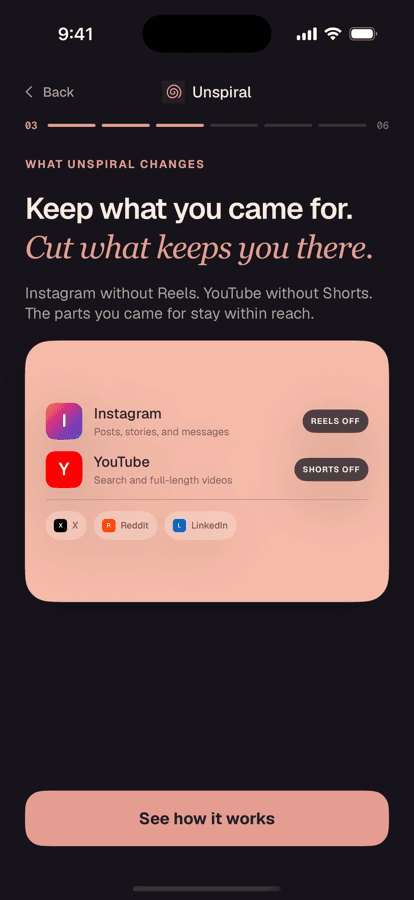
Unspiral does this. Reels hiding is always on, not a toggle you can forget to set, and it applies to the Reels tab, reels in the home feed, and reel rabbit-holes opened from DMs.
Open Instagram inside Unspiral
Unspiral's Home tab lists the sites it supports. Tap Instagram. The first time, you sign in on Instagram's own web page. Unspiral never sees your username or password.
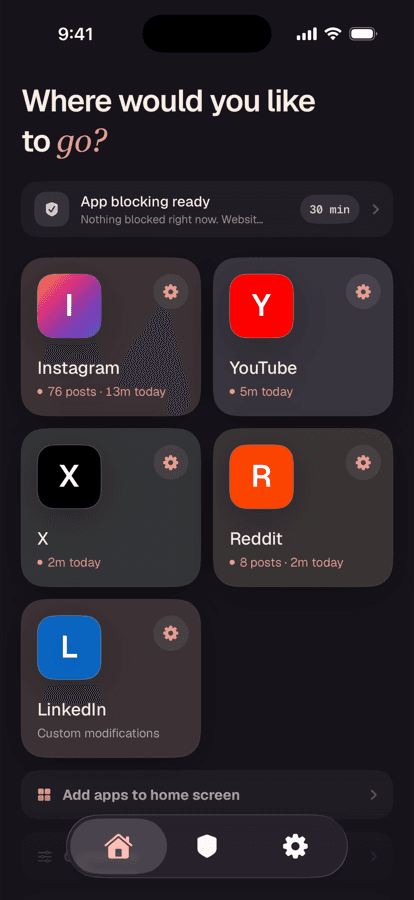
Every supported site has its own card and its own gear for per-site controls. Use Instagram with the Reels tab gone
The bottom bar now has Home, Search, Messages, and Profile, with no Reels tab. Reels are stripped out of the home feed as you scroll, so stories, posts, and DMs are all still there.
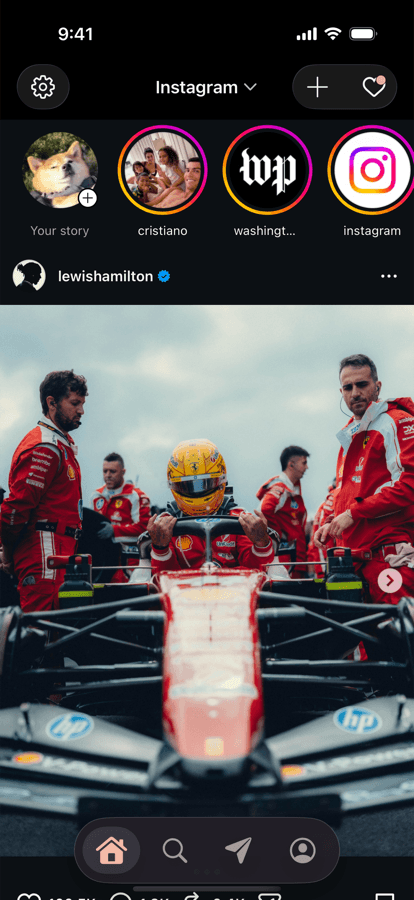
Same Instagram, four tabs instead of five. Reels is simply not there. Tune the rest with the gear icon
Tap the gear in the top-left to open Instagram Settings. There are nine switches beyond Reels: DMs only, Hide explore, Hide stories, Hide feed ads, Hide suggested posts, Hide saved, Hide the home feed, One voice message at a time, and Count posts seen.
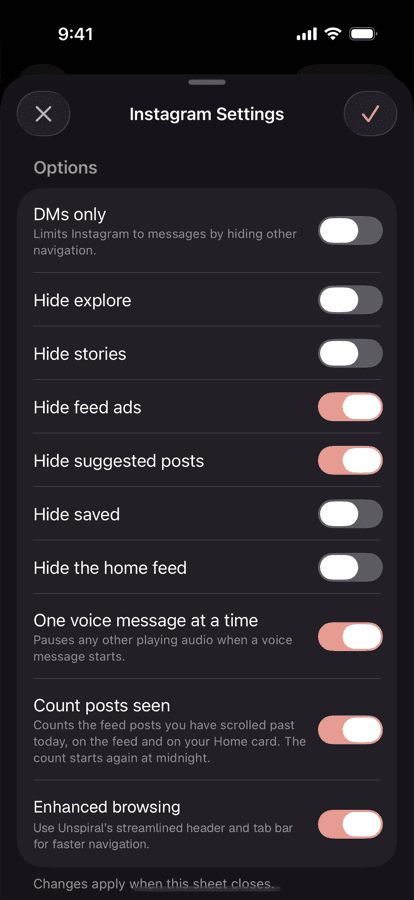
Hide feed ads and Hide suggested posts are on out of the box. Reels needs no switch. It's always hidden.
Method 2: a Screen Time limit on Instagram
iOS can limit how long you spend in Instagram, or block it outright on a schedule. Open Settings → Screen Time → App Limits, add a limit for Instagram, and iOS will shield the app when you hit it.
Use it. Just know what it is: a timer on the whole app, not a way to remove Reels. Instagram is either open, Reels and all, or closed. If your goal is to keep messaging people without getting pulled into short video, an app limit doesn't get you there.
Method 3: Safari plus a content blocker
You can open instagram.com in Safari and install a content-blocker extension that hides Reels elements with CSS rules. In principle this works and it's free.
In practice it's the most fragile thing on this list. Instagram's mobile site uses generated class names that change often, so blocker rules written against them break without warning, usually silently, so the first sign is a reel appearing mid-scroll. Expect to maintain it.
Method 4: Instagram's own controls (what actually helps)
None of these remove Reels, but two are worth the thirty seconds:
- Not interested. Press and hold a reel and mark it Not interested. Repeated often enough this shifts what Reels you're served, though it never reduces how many.
- Following feed. Tap Instagram at the top of the home screen and choose Following for a chronological, follows-only feed. It resets to the ranked feed when you reopen the app, but it's genuinely quieter while you're in it.
- Sensitive content control. Under Settings → Suggested content, setting this to Less trims some of what Explore and Reels surface.
- Time limits and reminders. Under Settings → Time spent, you can set a daily reminder. It's a nudge, not a boundary.
Method 5: delete the app
The bluntest option, and for plenty of people the right one. Deleting Instagram removes Reels completely. The reason most people don't stick with it's DMs: for a lot of us Instagram is a messaging app that happens to have a feed attached, and losing the messages is what pulls the app back onto the phone within a week.
If DMs are the thing keeping Instagram installed, that's precisely the case where opening it through a browser-based app makes sense. You keep the messages and lose the short video.
What you keep and what you give up
Here's the honest trade. Instagram's mobile website isn't the native app. Using it through Unspiral, messaging, posts, stories, profiles, search, and regular video all work. Some native-only behavior doesn't: push notifications, calls, certain creator and media tools, and the occasional workflow that Instagram ships to the app first.
You can also keep the native app installed and use app blocking to put a boundary around it, rather than replacing it outright. Many people run both: the website for everyday use, the native app for the handful of things only it can do.
Frequently asked questions
Can you turn off Reels on Instagram?
Not with a setting inside Instagram. At the time of writing Instagram provides no option to disable Reels or remove the Reels tab. You can only influence which reels you're shown, using Not interested and sensitive content controls. Removing Reels requires opening Instagram through an app that hides them, such as Unspiral, or deleting Instagram.
How do I hide Reels from my Instagram feed on iPhone?
Open Instagram inside an app that applies display rules to the mobile website. Unspiral hides Reels by default in the tab bar, in the home feed, and in DMs, while keeping messages, stories, posts, and search working. Safari with a content blocker can also hide Reels elements, but the rules break whenever Instagram changes its markup.
Does using Instagram in a browser remove Reels?
Not on its own. Instagram's mobile website still includes Reels. What removes them is a display rule applied on top of that page, which is what a browser-based app like Unspiral does on your device.
Will hiding Reels get my Instagram account banned?
No. Hiding Reels changes only what your own device displays. Nothing is modified on Instagram's servers, no automation posts or interacts on your behalf, and the native Instagram app is left untouched.
Can I keep Instagram DMs but block everything else?
Yes. In Unspiral's Instagram settings, turning on DMs only limits Instagram to messages by hiding the other navigation. Reels remain hidden regardless of that setting.